How to Convert SDLXLIFF Files to Excel for QA and Analysis

4
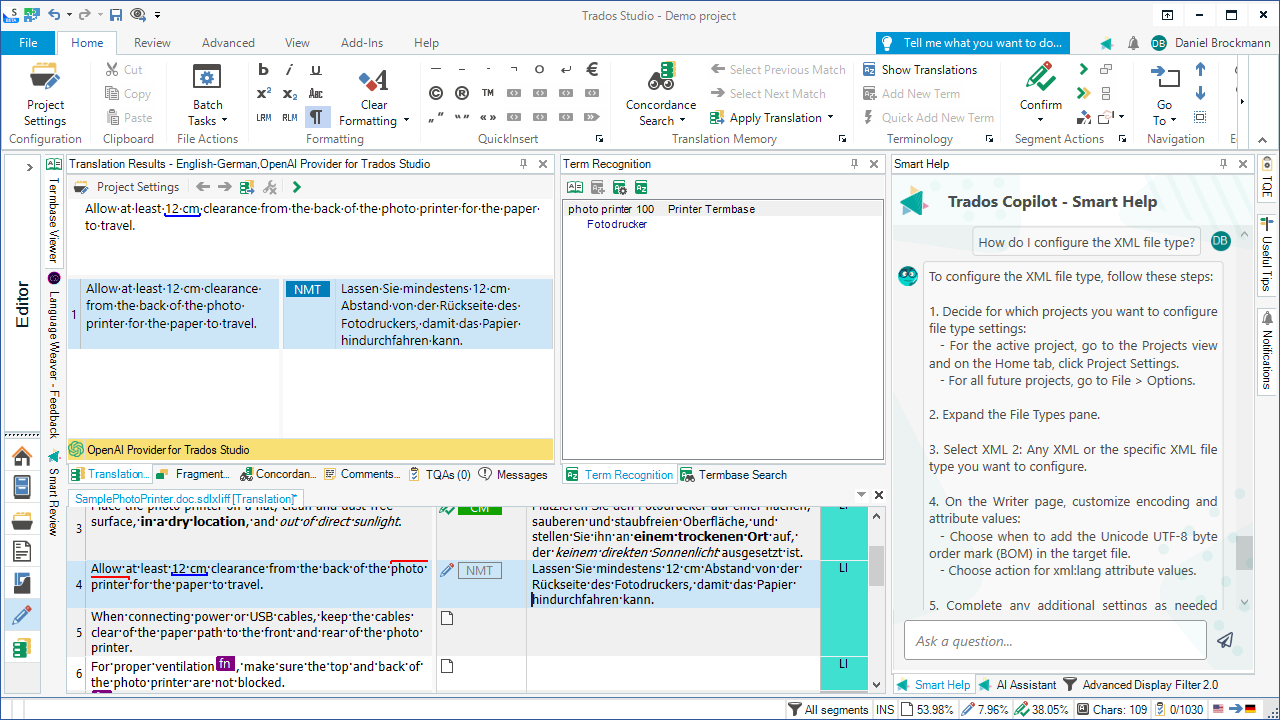
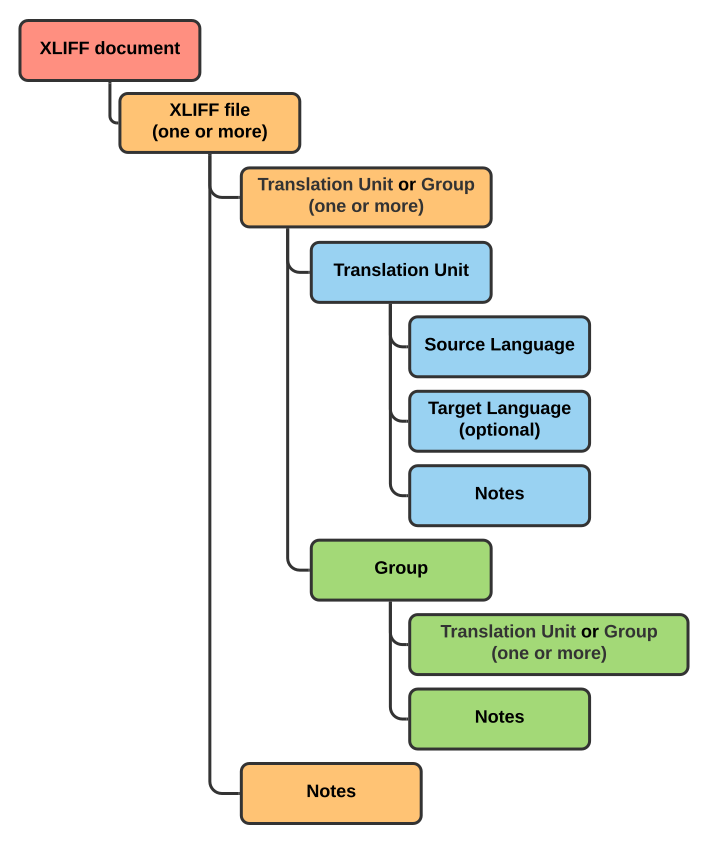
Modern translation workflows rely heavily on CAT tools (Computer-Assisted Translation tools). One of the most widely used CAT tools in the industry is SDL Trados Studio, which stores bilingual translation content in a format called SDLXLIFF.
While SDLXLIFF files are extremely powerful inside CAT tools, translators, project managers, and QA specialists often need to analyze translation data outside the CAT environment. This is where Excel-based workflows become very useful.
Converting SDLXLIFF files into Excel spreadsheets allows translators to review segments, perform quality assurance checks, analyze terminology, and collaborate with clients or reviewers who do not use CAT tools.
In this article, we will explore:
-
What SDLXLIFF files are
-
Why translators convert SDLXLIFF files into Excel
-
Common QA workflows using Excel
-
Typical challenges with SDLXLIFF analysis
-
How the linigu.cloud SDL Converter can convert SDLXLIFF files quickly
What Is an SDLXLIFF File?


4
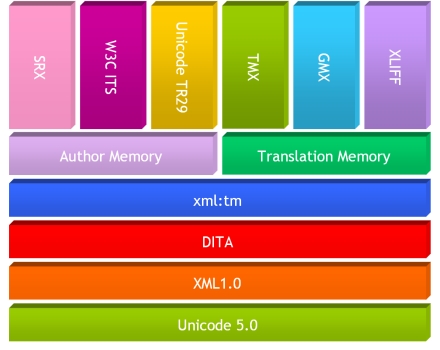
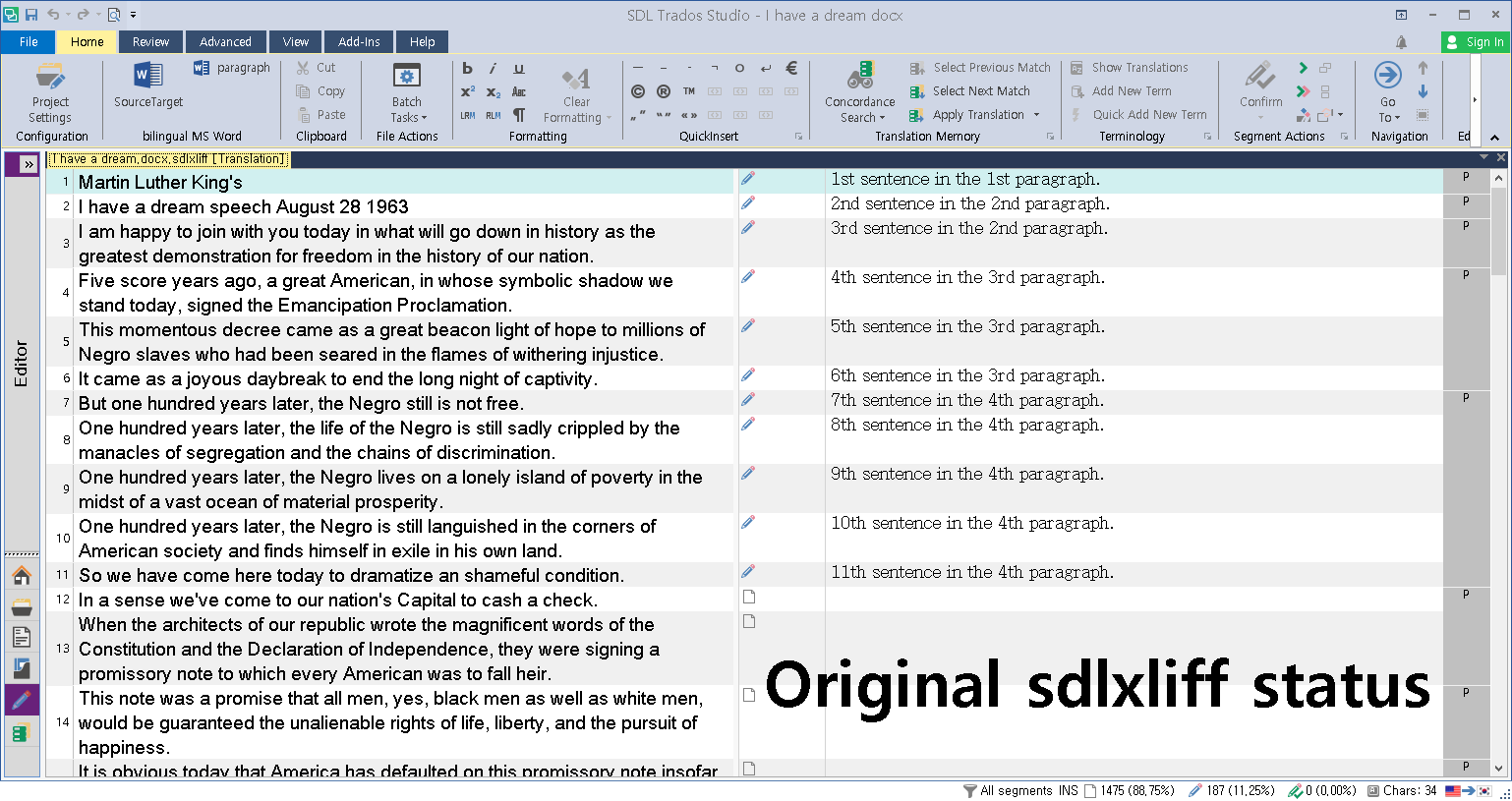
SDLXLIFF is a bilingual XML-based file format used by SDL Trados Studio. The format is based on the XLIFF (XML Localization Interchange File Format) standard, which is widely used in localization workflows.
Each SDLXLIFF file contains:
-
Source text segments
-
Target translations
-
Formatting tags
-
Segment status information
-
Comments and metadata
-
Translation memory matches
For example, a simplified SDLXLIFF segment might look like this:
<trans-unit id="1">
<source>Install the software before starting the system.</source>
<target>Starten Sie das System erst nach der Installation der Software.</target>
</trans-unit>
Inside SDL Trados Studio, these segments are displayed in the bilingual editor, where translators translate segment by segment.
However, outside of CAT tools, SDLXLIFF files are difficult to read because they contain complex XML structures and embedded formatting tags.
Why Translators Convert SDLXLIFF Files to Excel
Converting SDLXLIFF files to Excel provides several practical advantages.
1. Easy Segment Review
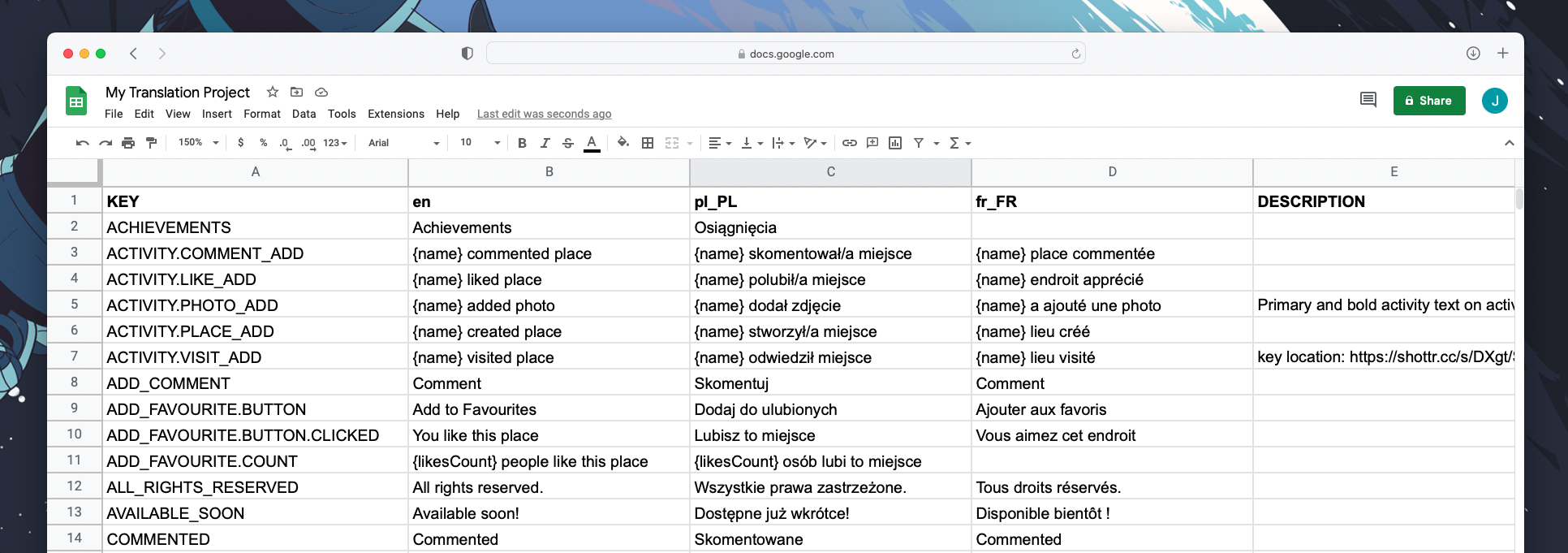
In Excel, translators can quickly view the entire document in a structured table:
| Segment | Source | Target |
|---|---|---|
| 1 | Install the software | Software installieren |
| 2 | Restart the system | System neu starten |
This format makes it easier to review translations quickly.
2. Terminology Analysis
Excel allows translators to search, filter, and analyze terminology.
For example, they can check whether a specific term is translated consistently throughout the document.
3. Quality Assurance Checks
QA specialists often perform checks such as:
-
missing translations
-
inconsistent terminology
-
duplicate segments
-
number mismatches
-
punctuation errors
Excel provides powerful tools such as filters, formulas, and conditional formatting to identify issues.
4. Collaboration with Non-CAT Users
Many clients, reviewers, or subject matter experts do not use CAT tools.
Excel files allow them to:
-
review translations
-
add comments
-
suggest corrections
This makes collaboration significantly easier.
Typical QA Workflows Using Excel
Excel plays an important role in translation quality assurance workflows.
Some common QA processes include:
Detecting Missing Translations
If a segment contains source text but no translation, Excel filters can quickly identify the problem.
Checking Number Consistency
Technical translations often include numbers such as:
-
measurements
-
version numbers
-
technical parameters
QA reviewers can use Excel formulas to detect mismatches between source and target numbers.
Detecting Duplicate Translations
Duplicate segments should usually have identical translations.
Excel makes it easy to compare these segments.
Terminology Compliance
Project managers often maintain approved terminology lists.
Using Excel, translators can verify whether the correct terminology has been used.
Challenges When Working with SDLXLIFF Files
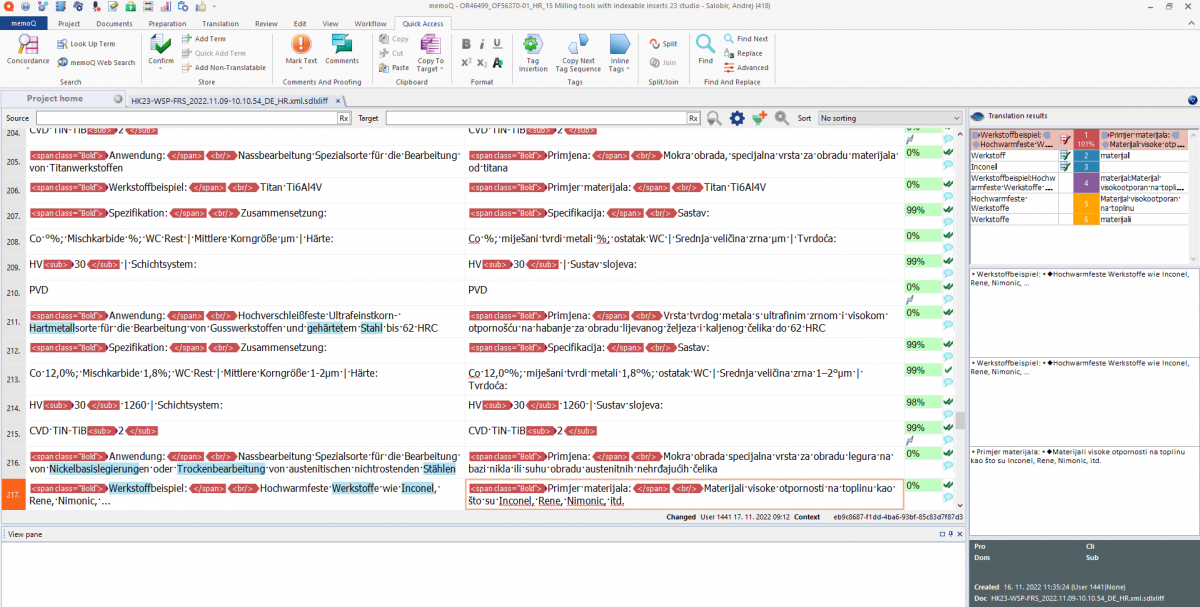
Although SDLXLIFF files contain structured data, working with them outside CAT tools is not always straightforward.
Some common challenges include:
Complex XML Tags
SDLXLIFF files include many formatting tags that preserve the original document layout.
These tags can make the file difficult to read or analyze manually.
Segmentation Structure
Each segment contains additional metadata such as:
-
translation status
-
confirmation level
-
match information
Extracting only the relevant translation text requires proper parsing.
Large File Sizes
Large translation projects can contain thousands of segments, making manual analysis inefficient.
How to Convert SDLXLIFF Files to Excel
4
Several approaches exist for converting SDLXLIFF files into Excel format.
Method 1: Manual XML Parsing
Since SDLXLIFF is XML-based, it can technically be opened with text editors.
However, extracting usable translation data manually is extremely time-consuming.
Method 2: Custom Scripts
Some translators use Python or other scripts to extract translation segments.
While powerful, this approach requires programming knowledge.
Method 3: Dedicated Conversion Tools
The most efficient approach is to use a specialized conversion tool designed for CAT files.
Tools that understand the SDLXLIFF structure can quickly extract source and target segments into structured spreadsheets.
Converting SDLXLIFF Files with the Linigu Converter
4
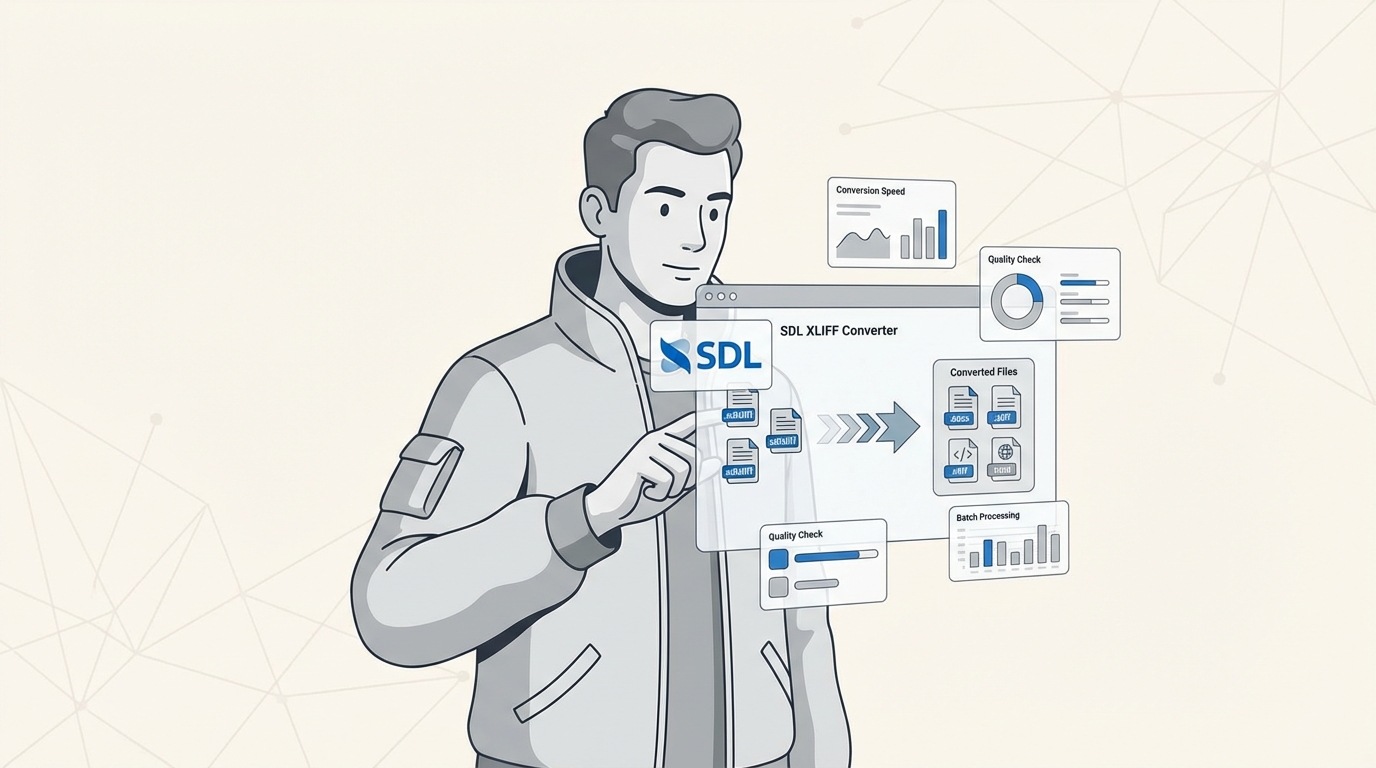
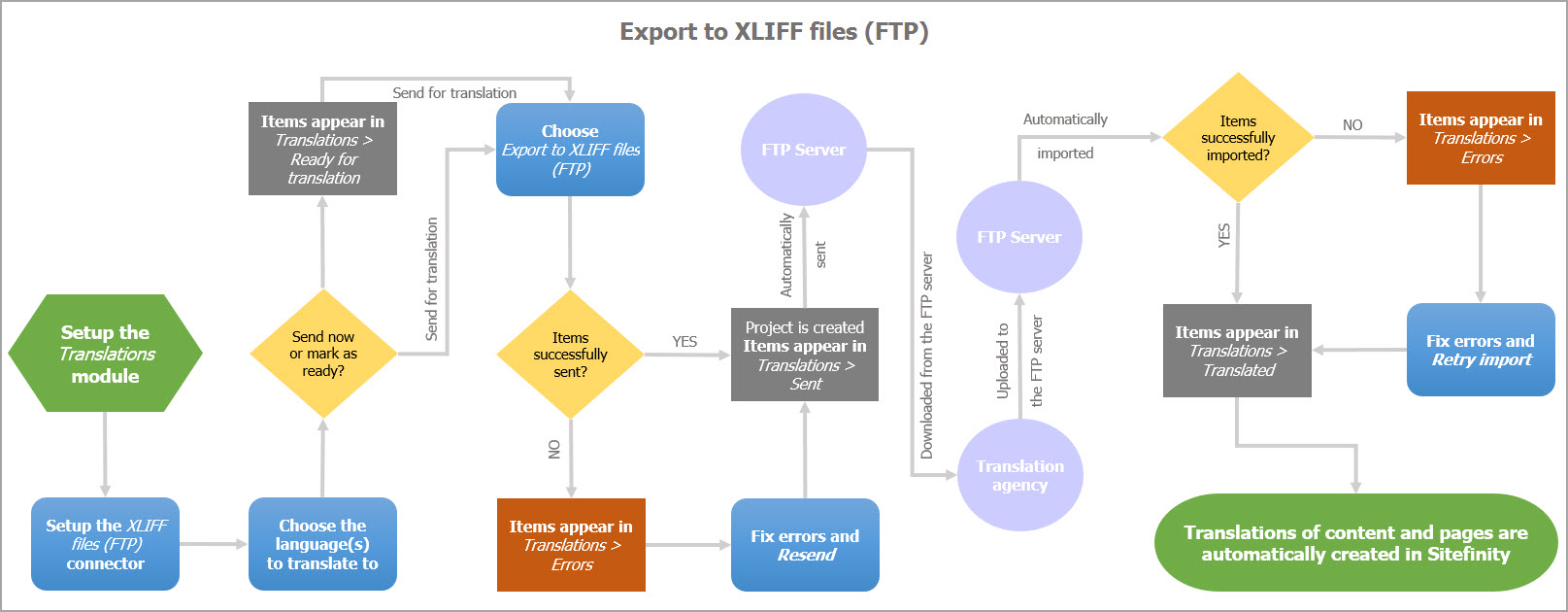
The SDL Converter on linigu.cloud provides an easy way to convert SDL Trados files into readable Excel or Word formats.
With a simple upload process, translators can quickly transform SDLXLIFF files into structured spreadsheets that display:
-
source segments
-
target translations
-
bilingual translation pairs
This makes it much easier to perform:
-
translation QA checks
-
terminology analysis
-
project reviews
-
translation audits
The converter is especially useful for translators who need to inspect translation data outside SDL Trados Studio.
After registering, users can convert files quickly and review them instantly in Excel or Word.
Best Practices for SDLXLIFF QA in Excel
When working with SDLXLIFF files converted into Excel, translators should follow several best practices.
Keep Source and Target Columns Separate
Always maintain clear columns for source and target text to avoid confusion.
Use Filters for Faster QA
Filters allow reviewers to quickly identify:
-
empty cells
-
duplicated segments
-
specific terminology
Highlight Potential Errors
Conditional formatting can help detect:
-
missing punctuation
-
untranslated segments
-
inconsistent formatting
Maintain Version Control
When sharing Excel files with reviewers, keep track of different versions to avoid losing corrections.
Conclusion
SDLXLIFF files are the backbone of many professional translation workflows in SDL Trados Studio. However, analyzing translation data directly inside CAT tools is not always the most efficient approach for quality assurance and terminology analysis.
By converting SDLXLIFF files into Excel spreadsheets, translators and project managers gain powerful tools for reviewing segments, detecting errors, and collaborating with reviewers who may not use CAT software.
Tools like the SDL Converter on linigu.cloud simplify this process by allowing translators to convert SDL Trados files quickly into bilingual Word or Excel formats.
With the right workflow and tools, translators can transform complex SDLXLIFF files into clear, structured data that supports better translation quality and more efficient project management.