Introduction: Trados Errors Are Rarely “Bugs”
Many translators blame SDL Trados when something goes wrong.
In reality, most errors are caused by workflow misunderstandings, incorrect settings, or skipped steps.
Understanding common errors helps translators:
-
Work faster
-
Avoid rework
-
Deliver stable files
-
Reduce QA feedback
This article covers the most frequent SDL Trados errors and explains why they happen and how to fix them.
1. Tag Errors (Missing, Extra, or Misordered Tags)
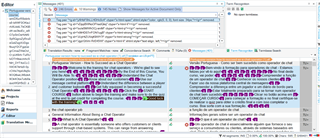
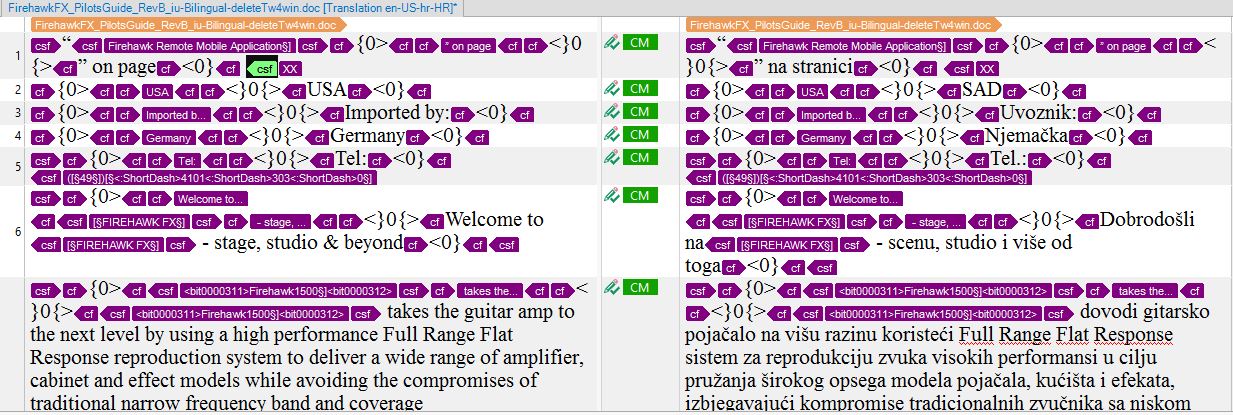
Why It Happens:
-
Tags deleted accidentally
-
Tags typed manually
-
Copy-paste from external editors
-
MT output mishandling tags
How to Fix:
-
Use QuickInsert for tags
-
Copy tags from source to target
-
Run QA before delivery
-
Never type tags manually
Tag errors are critical errors and must always be resolved.
2. Segment Status Errors (Unconfirmed or Draft Segments)
Why It Happens:
-
Forgetting to confirm segments
-
Using wrong confirmation shortcut
-
Filtering hides unconfirmed segments
How to Fix:
-
Use Ctrl + Enter consistently
-
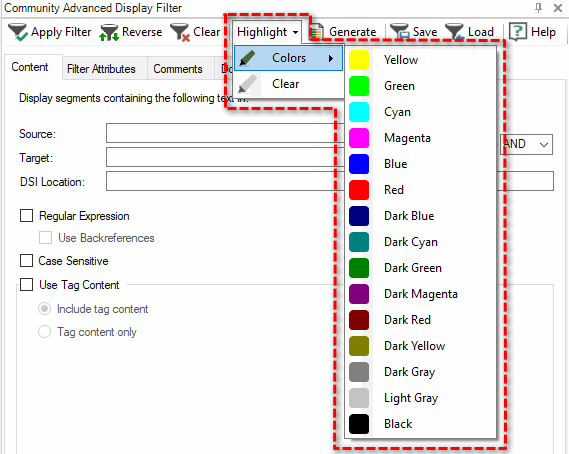
Filter by segment status before delivery
-
Run QA to detect unconfirmed segments
Unconfirmed segments can be exported incorrectly or omitted.
3. Translation Memory Not Updating

Why It Happens:
-
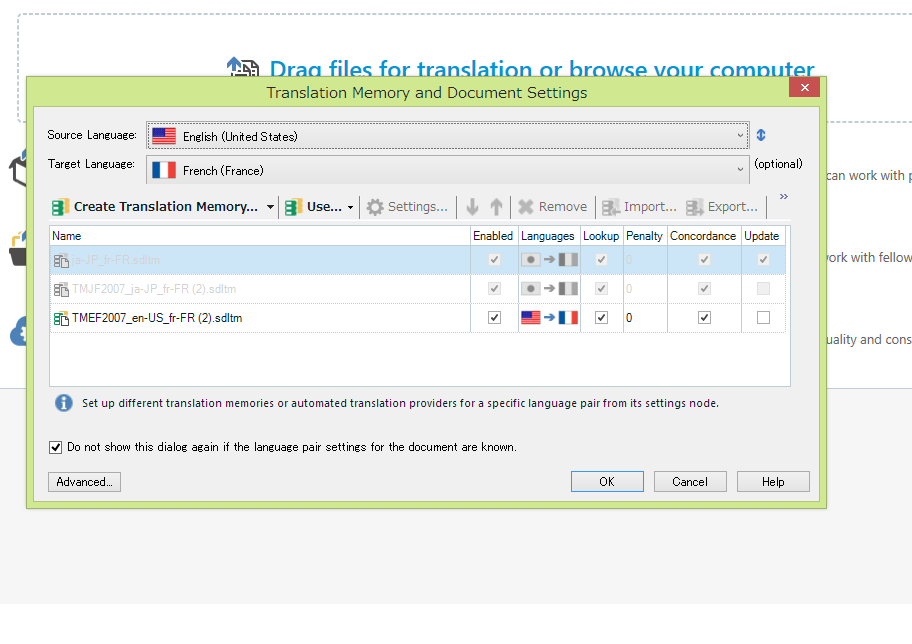
TM set to read-only
-
Wrong update settings
-
Confirming segments incorrectly
-
Working in preview mode
How to Fix:
-
Check TM permissions
-
Verify update options in project settings
-
Confirm segments properly
A TM that does not update leads to lost work and inconsistency.
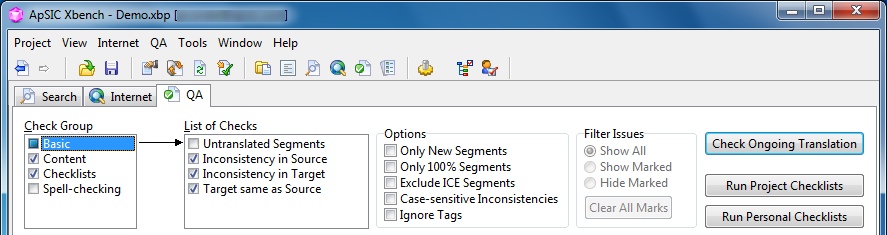
4. QA Check Errors Ignored or Misunderstood
Why It Happens:
-
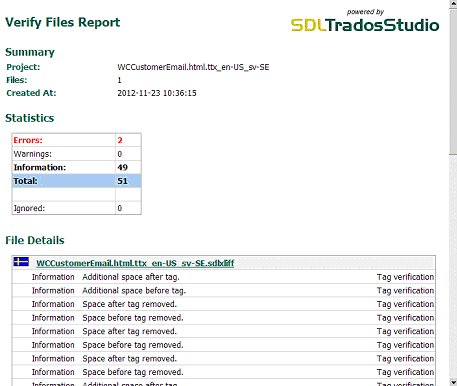
QA warnings misunderstood
-
Errors marked as ignored without review
-
QA run too late
How to Fix:
-
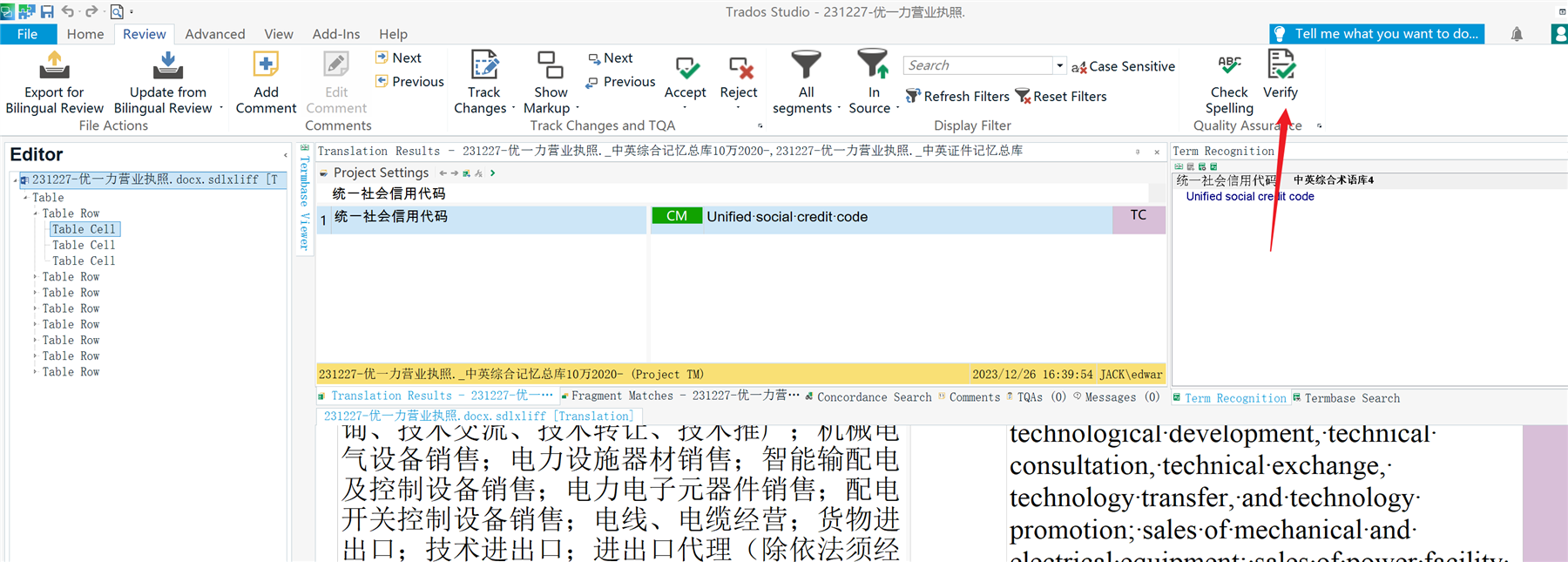
Run QA regularly, not only at the end
-
Treat tag and terminology errors as critical
-
Do not blindly ignore warnings
QA is not optional—it is a delivery requirement.
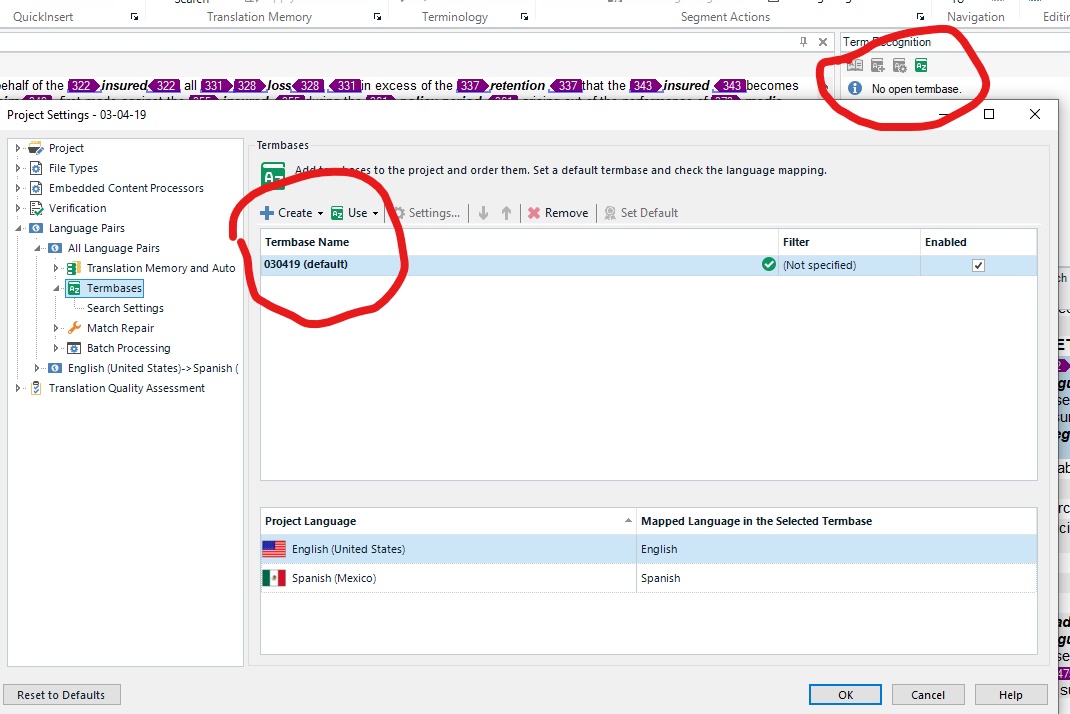
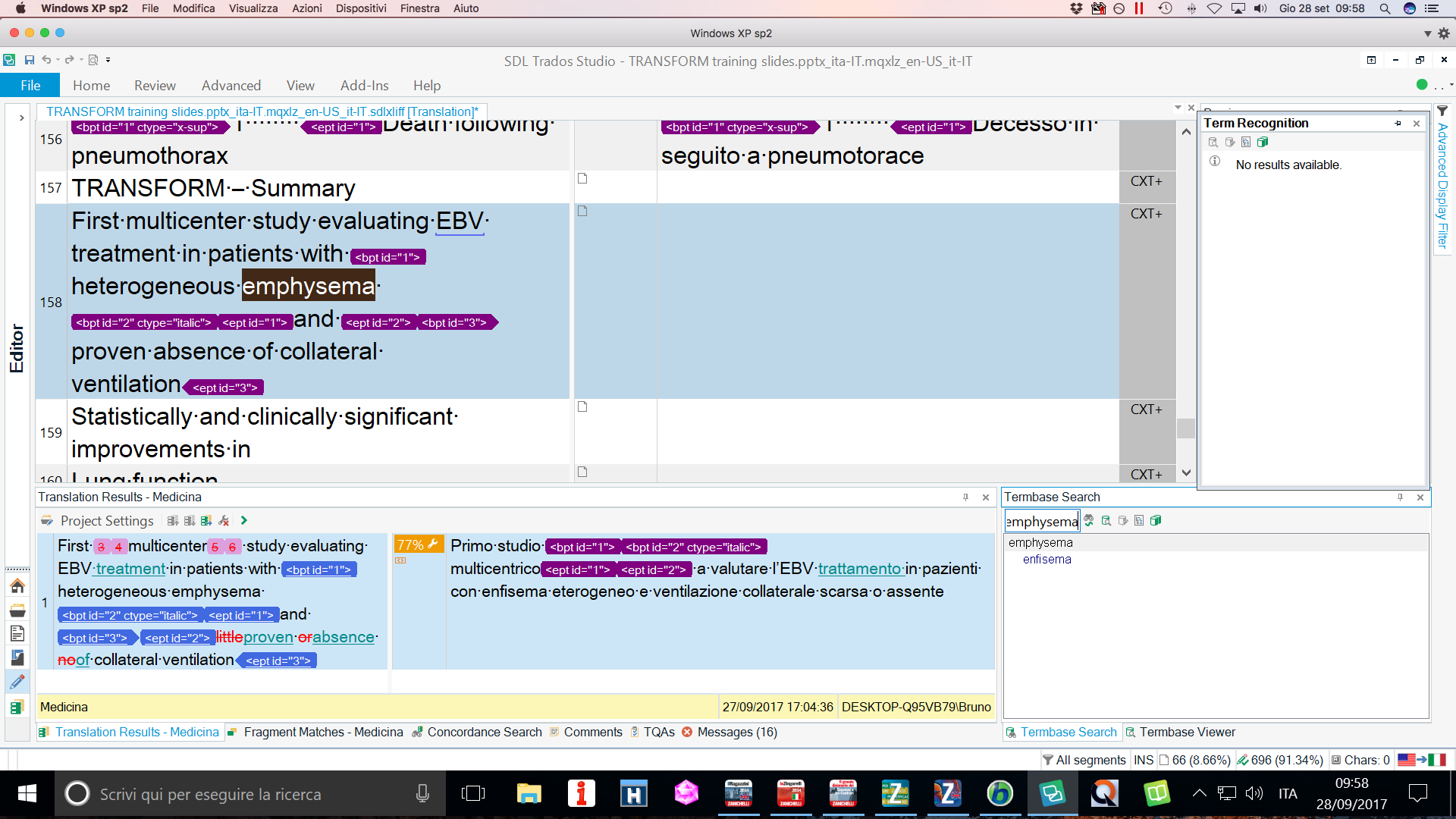
5. Terminology Recognition Not Working
Why It Happens:
-
Termbase not activated
-
Wrong language settings
-
Indexing issues
-
Incorrect term structure
How to Fix:
-
Activate termbase in project settings
-
Verify language pairs
-
Rebuild termbase index
If terminology is not highlighted, consistency is at risk.
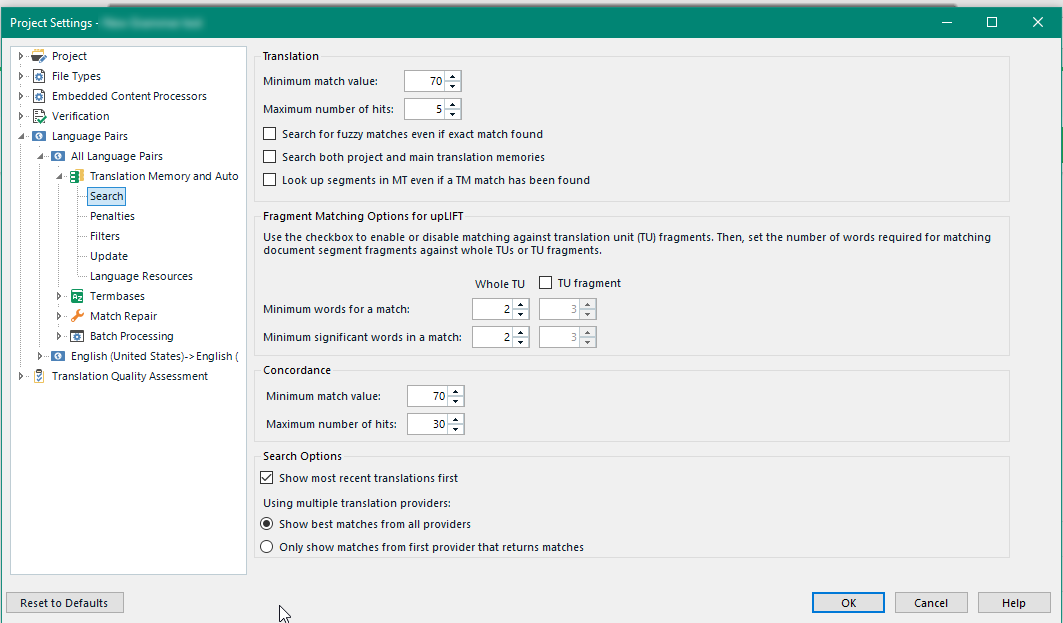
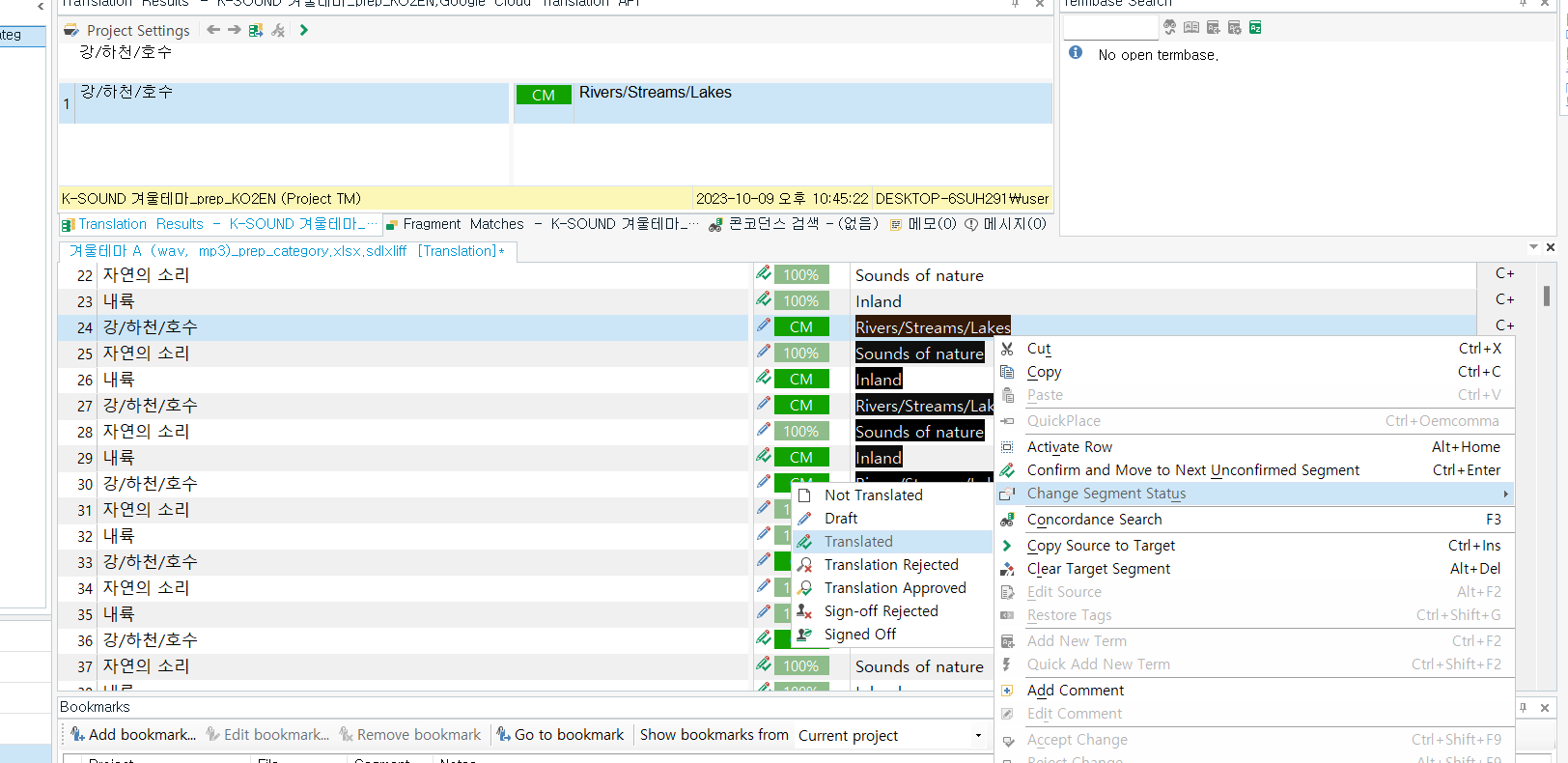
6. Auto-Propagation Not Working as Expected
Why It Happens:
-
Auto-propagation disabled
-
Context differences between segments
-
Tags differ slightly
How to Fix:
-
Enable auto-propagation
-
Compare tags carefully
-
Use “Apply Translation” manually
Auto-propagation saves time—but only when segments are truly identical.
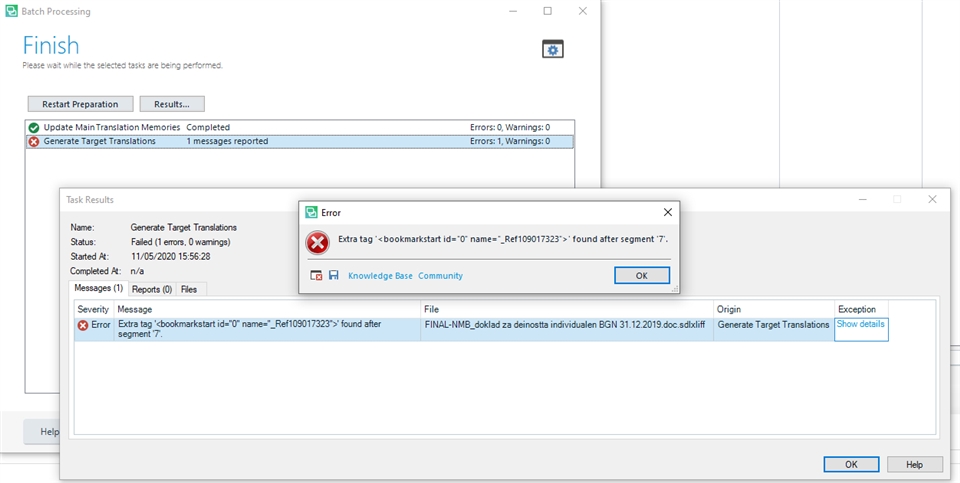
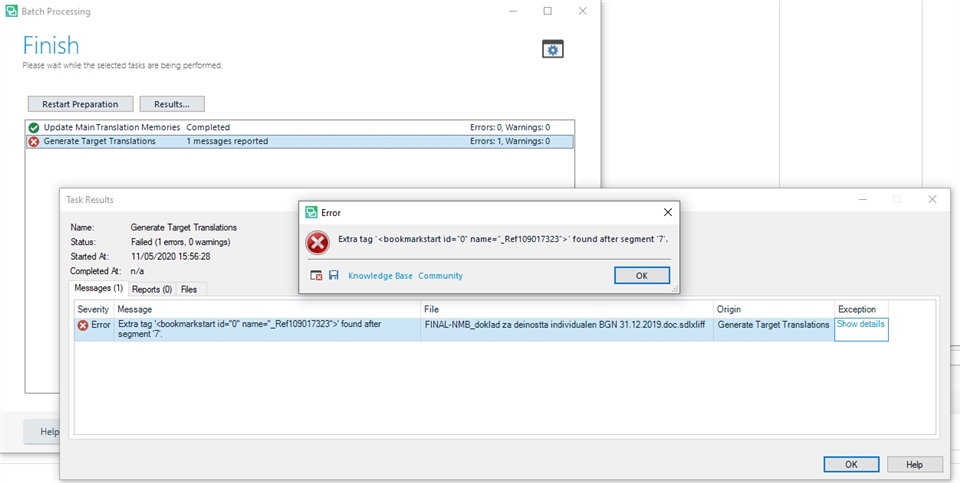
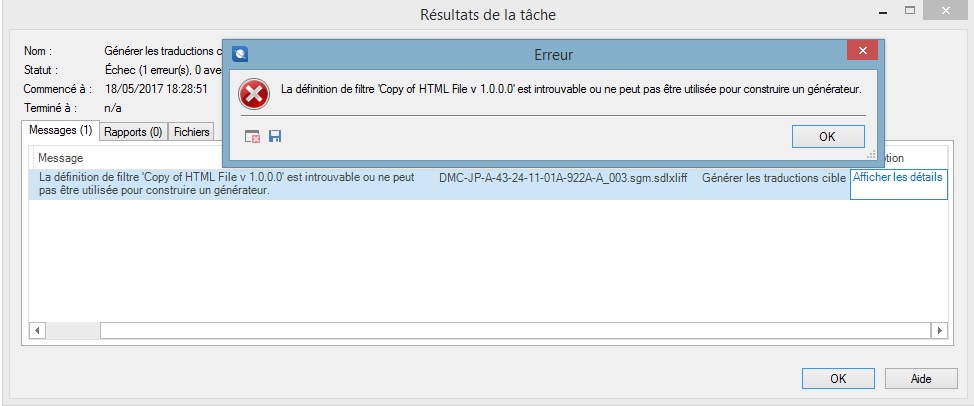
7. File Export and Target File Generation Errors
Why It Happens:
-
Tag errors
-
Unsupported characters
-
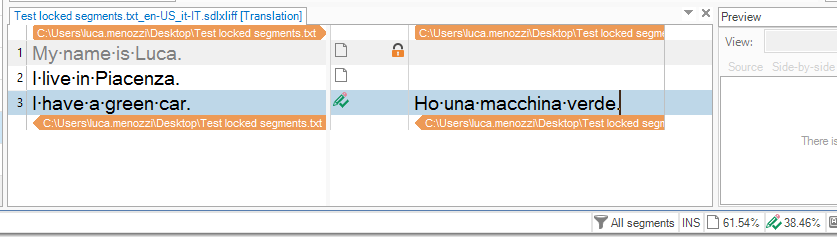
Locked segments modified
-
Source file corruption
How to Fix:
-
Resolve all QA errors
-
Recheck locked segments
-
Reimport source if necessary
If the target file cannot be generated, delivery is impossible.
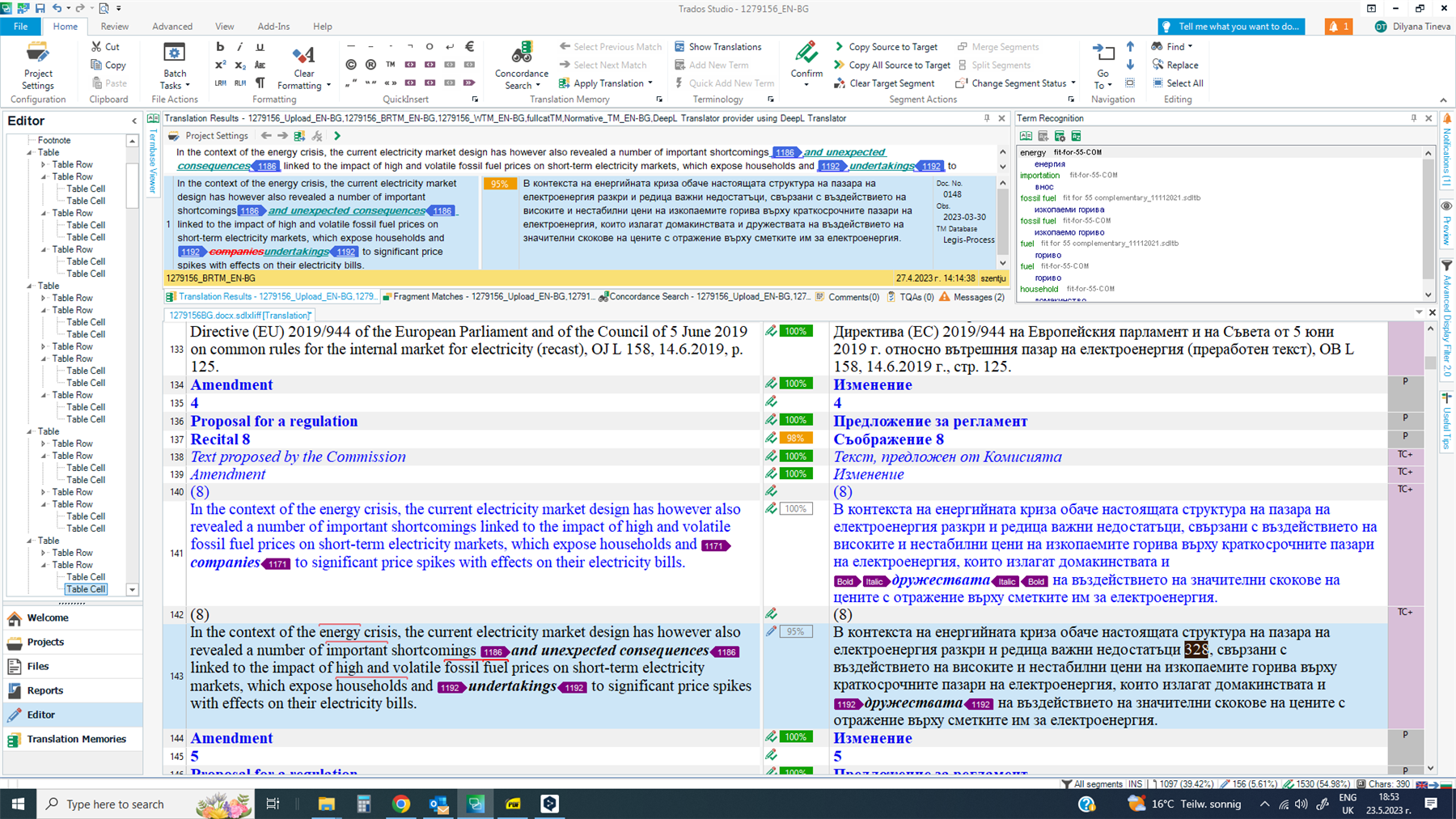
8. Working Outside the Editor (Copy-Paste Errors)

Why It Happens:
-
Translating in Word and pasting into Trados
-
External formatting copied
-
Tags lost in paste
How to Fix:
-
Translate inside Trados only
-
Use “Paste Special” when needed
-
Reinsert tags manually via QuickInsert
Trados is not a text editor—it is a structured environment.
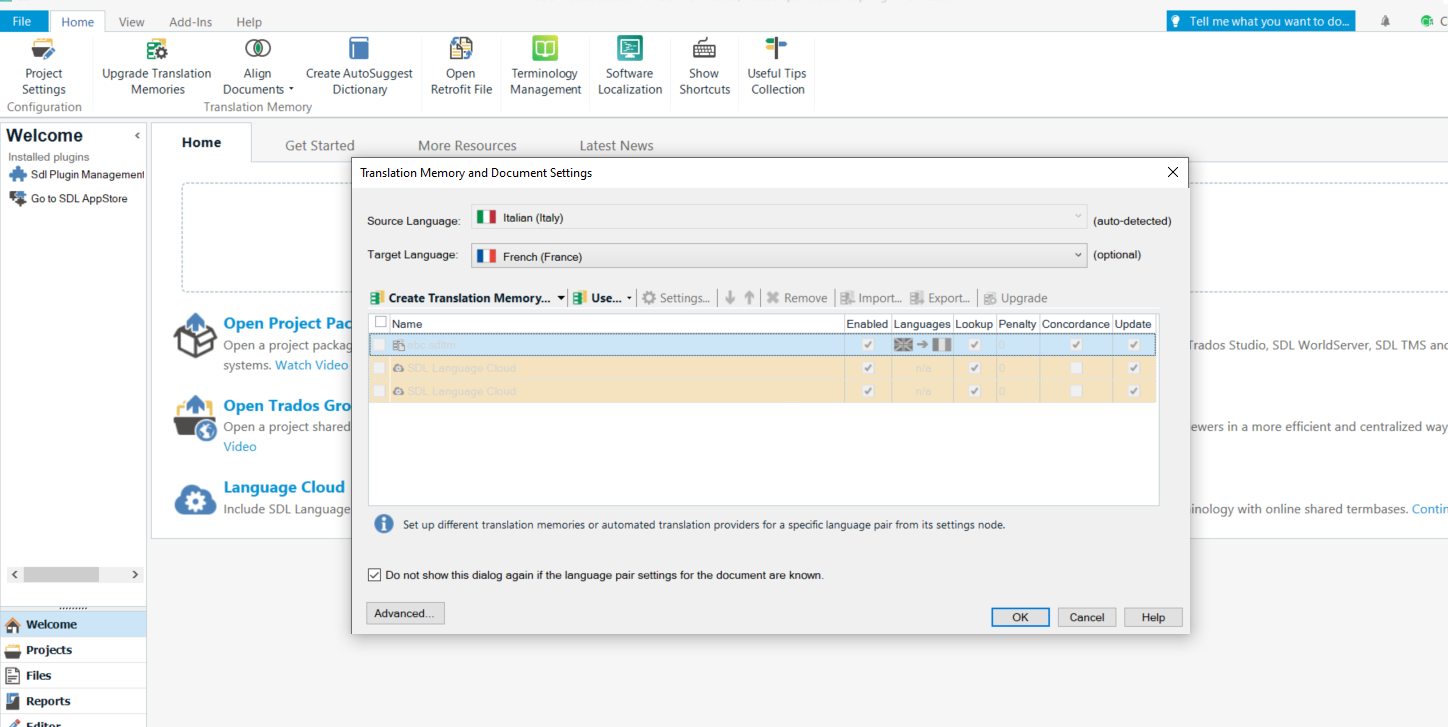
9. Project Settings Misconfiguration
Why It Happens:
-
Wrong language variants
-
Missing TM or termbase
-
Incorrect QA profile
How to Fix:
-
Review project settings before starting
-
Verify language codes
-
Test with one segment
Most “mysterious” errors start here.
Conclusion: Errors Are Signals, Not Failures
SDL Trados errors are not random.
They are signals that something in the workflow needs attention.
Professional translators:
-
Understand why errors happen
-
Fix causes, not symptoms
-
Use QA proactively
-
Respect Trados structure
Mastering SDL Trados is not about avoiding errors—it’s about handling them correctly.
Comments ()
No comments yet. Be the first to comment!